Filtering & Searching Test Cases Guide
2 min read
The Repository in Hawzu provides powerful search and filtering capabilities to help you quickly locate test cases, even in large and complex projects. You can use keyword-based search, property-based filters, or a combination of both to narrow down results efficiently.
Search Functionality
Section titled “Search Functionality”Basic Search
Section titled “Basic Search”To search for test cases:
-
Select the Search input in the Repository header.
-
Type keywords from test case titles or descriptions. Results update as you type.
Search ignores upper and lower case and matches parts of words.
Keyboard Shortcut
Press Ctrl + F (or Cmd + F on macOS) to focus the search input.
Search Tips
Section titled “Search Tips”- Use meaningful keywords from titles or descriptions
- Partial words are supported (e.g.
syncmatchessynchronization) - Multiple words further narrow results
- Clear the search input to reset results
Filters
Section titled “Filters”Filters help narrow down test cases based on their metadata and properties.
Using Filters
Section titled “Using Filters”-
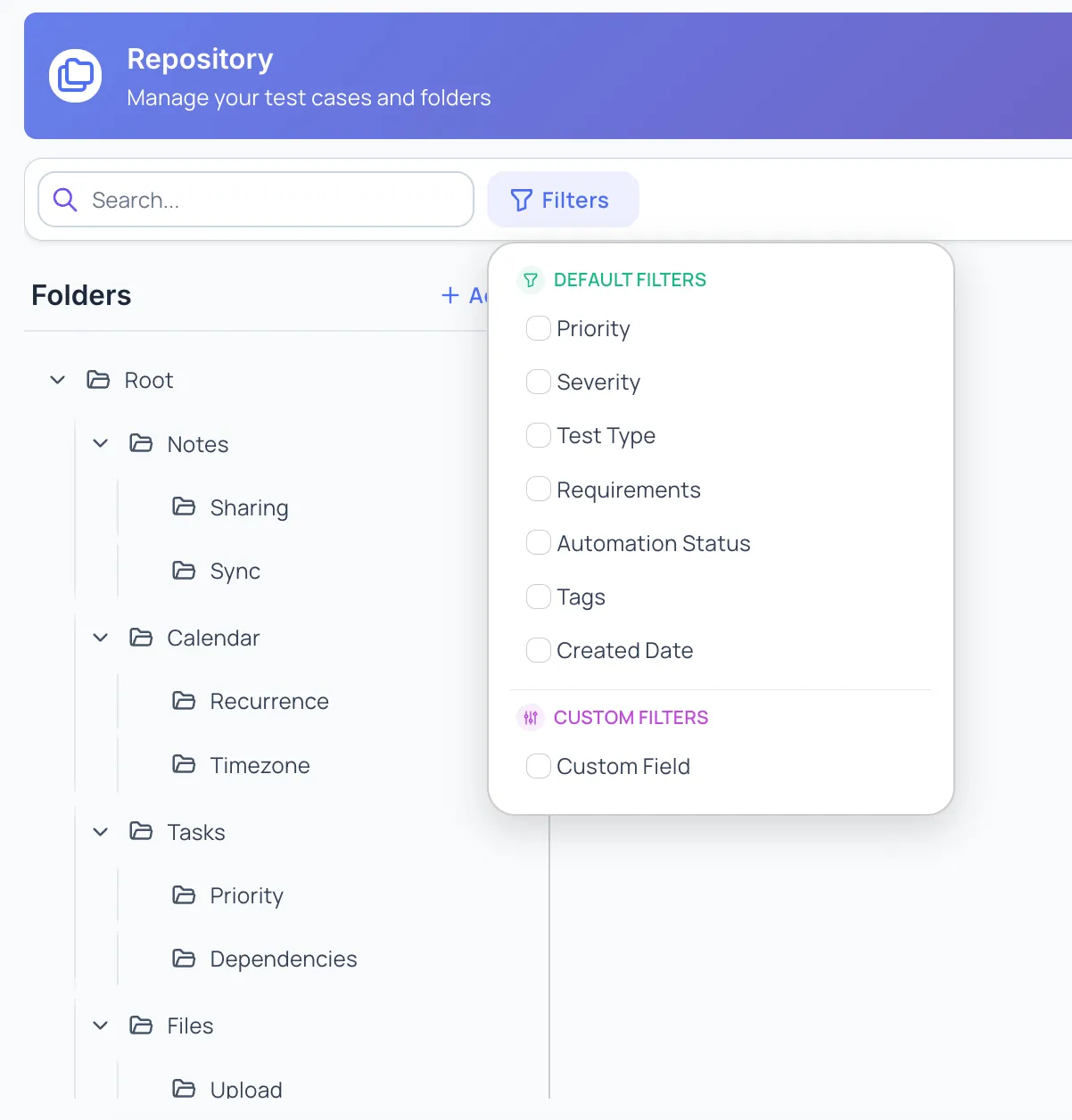
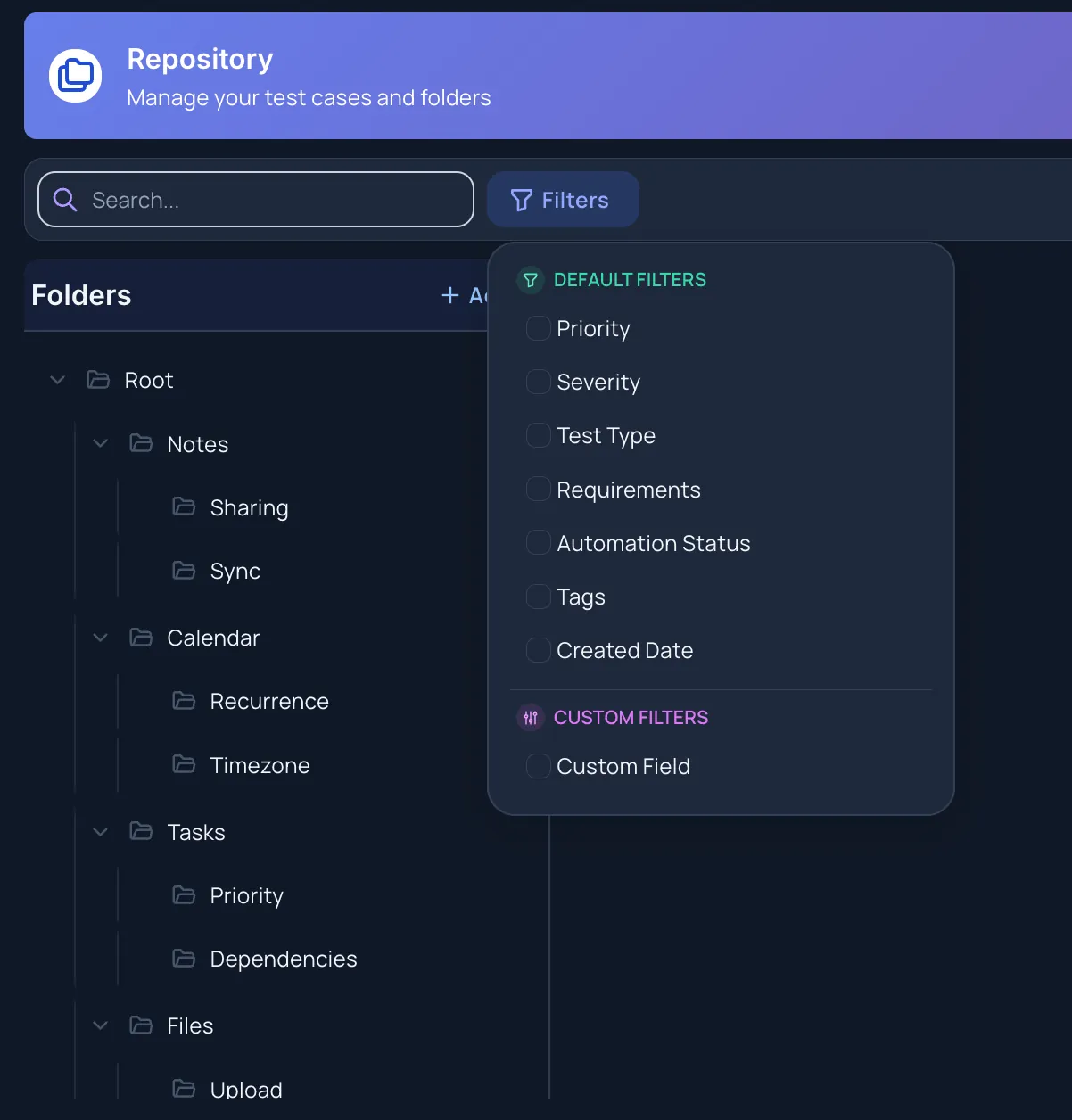
Select Filters next to the search bar.
-
Choose one or more filters. Results update as you select them.
The available filters are:
- Priority
- Severity
- Test Type
- Automation Status
- Labels
- Source — how the case was created, such as written by hand or generated
- Created By
- Flakiness — how unstable the case has been across recent runs
Filter Logic
Section titled “Filter Logic”All active filters use AND logic.
A test case must match all selected filters to appear in the results.
Clearing Filters
Section titled “Clearing Filters”- Individual filters can be cleared independently
- Use Clear All to remove all applied filters at once
Combining Search and Filters
Section titled “Combining Search and Filters”Search and filters can be used together:
-
Apply filters to narrow the list.
-
Search for keywords within the filtered results.
This combination is the most effective way to work with large repositories.
Best Practices
Section titled “Best Practices”- Use search for quick keyword discovery
- Use filters for structured narrowing
- Select folders intentionally to control scope
- Clear filters when changing context
- Apply filters first, then search for precision
Permissions
Section titled “Permissions”Search and filtering are available to all project users.
Results always respect access permissions:
- You only see test cases you are allowed to view
- Custom field filters depend on project configuration
Next Steps
Section titled “Next Steps”- Learn about Managing Folders
- Explore Creating Test Cases
- Review Bulk Operations
- Go back to the Repository Overview