Projects Management - Workspace Guide
The Projects page is the default landing page when you enter a workspace. Here you can view, create, and manage all projects within your workspace. Projects are containers that organize test cases, test runs, defects, and other testing artifacts.
Accessing Projects
To access the Projects page:
-
Enter a workspace by clicking on it from the Workspaces page.
-
As a result, you’ll be redirected to the Projects page at
/workspace/:workspaceId/projects. -
You’ll see a grid of all projects in the workspace, each displayed as a project card.
Viewing Projects
The Projects page displays all projects in your workspace in a grid layout. Each project card shows:
- Project Code: A unique identifier for the project (e.g., “TC”, “API”)
- Project Name: The name of the project
- Description: A brief description of the project’s purpose
- Quick Actions: Options to access project overview or settings
Project Card Information
Each project card displays:
- Project Code Badge: A colored badge showing the project code
- Project Title: The full name of the project
- Project Description: Details about what the project covers
- Action Buttons: Quick access to project overview or settings
Creating a Project
You can create a new project if you have the appropriate permissions.
To create a project:
-
On the Projects page, click the “Create Project” button in the top-right corner of the header.
-
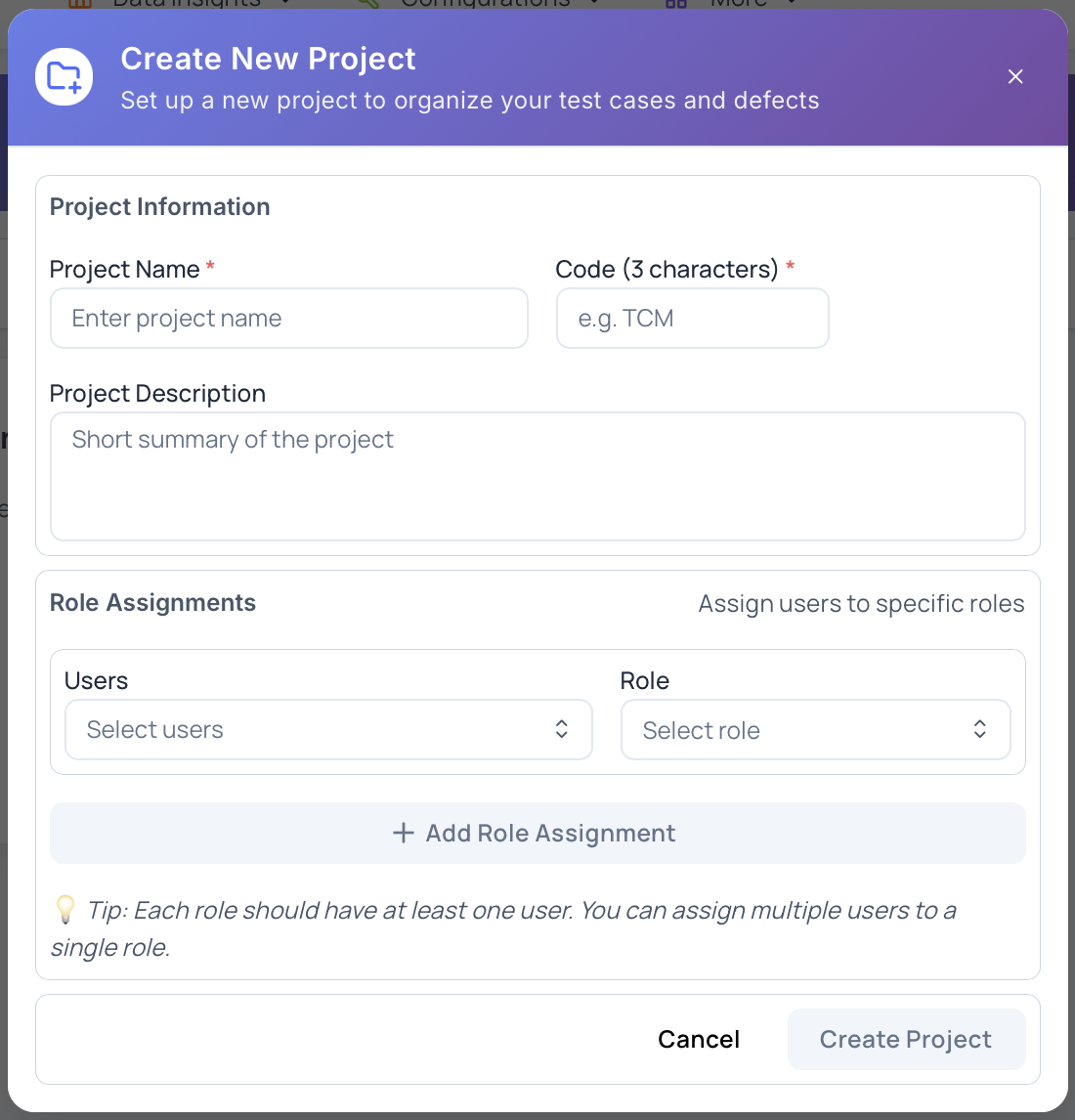
A modal “Create New Project” will appear. Fill in the following fields:
Project Name: Enter a descriptive name for your project (e.g., “Mobile App Testing”, “API Test Suite”). This field is required and must be at least 3 characters long.
Code (3 characters): A short code that uniquely identifies the project. The code must be exactly 3 characters (e.g., “TCM”, “API”, “MOB”). This code is used in URLs and references. This field is required.
Project Description: (Optional) Add details about the project’s scope, purpose, or objectives. This helps team members understand what the project covers.
Users & Roles: Assign users to the project and assign their roles:
- Click “Add Role Assignment” to create a new role assignment group
- Select users from the workspace by typing their email addresses
- Assign a role to the selected users (e.g., Administrator, Workspace Manager, Tester, Viewer)
- You can add multiple role assignments, each with different users and roles
- Click the trash icon to remove a role assignment group
- Users can be added or removed after project creation
-
Click “Create Project” to create the project.
-
As a result, the new project is created and appears in the projects grid. You can now access it by clicking on the project card.
Filtering Projects
The Projects page includes filtering capabilities to help you find specific projects.
Available Filters
Search:
- Use the search bar to filter projects by name
- Search is case-insensitive and matches project names
Test Runs:
- Has open test runs: Shows only projects with active or open test runs
- No open test runs: Shows only projects without open test runs
Defects:
- Has open defects: Shows only projects with unresolved defects
- No open defects: Shows only projects without open defects
To filter projects:
-
Use the search bar to type a project name or part of a name.
-
Click on filter options to apply filters for test runs or defects.
-
As a result, the project grid updates to show only matching projects.
-
Click “Clear All” to remove all filters and show all projects.
Project Actions
From the Projects page, you can perform various actions on projects:
Access Project Overview
-
Click on a project card or use the “Overview” action.
-
As a result, you’ll be redirected to the project’s overview page at
/workspace/:workspaceId/project/:projectId/overview.
Access Project Settings
-
Click on a project card and select “Settings” from the actions menu.
-
As a result, you’ll be redirected to the project’s settings page at
/workspace/:workspaceId/project/:projectId/settings.
Project Properties
Each project has the following properties:
- Project ID: A unique identifier automatically assigned to the project
- Project Code: A short, user-defined code for the project
- Project Name: The full name of the project
- Description: Optional details about the project
- Created By: The user who created the project
- Created Date: When the project was created
- Users: List of users with access to the project
- Roles: Roles assigned to users within the project
Project Statistics
Project cards may display statistics such as:
- Open Test Runs: Number of active test runs in the project
- Open Defects: Number of unresolved defects in the project
- Test Cases: Total number of test cases
- Test Suites: Number of test suites
These statistics help you quickly assess project activity and status.
Empty State
If no projects exist in the workspace, you’ll see an empty state with:
- A message indicating no projects exist
- A “Create Project” button (if you have permissions)
- Guidance on getting started
Permissions
Access to project features depends on your role and permissions:
- Workspace Admin: Can create, edit, and delete projects
- Project Admin: Can manage their assigned projects
- Project Member: Can view and contribute to assigned projects
- Viewer: Read-only access to projects
Best Practices
When managing projects:
- Naming Convention: Use clear, descriptive names that indicate the project’s purpose
- Project Codes: Keep codes short and meaningful (3-5 characters)
- Descriptions: Add detailed descriptions to help team members understand project scope
- User Assignment: Assign appropriate roles to users based on their responsibilities
- Organization: Use projects to separate different applications, products, or testing areas
Next Steps
After creating or accessing a project, you can:
- Learn about Project Management for detailed project features
- Explore Test Suites to organize your test cases
- Read about Test Runs to execute your tests
- Check out Defect Management to track issues
Was this page helpful?