Filtering & Searching Test Cases Guide
The Repository in Hawzu provides powerful search and filtering capabilities to help you quickly locate test cases, even in large and complex projects. You can use keyword-based search, property-based filters, or a combination of both to narrow down results efficiently.
Search Functionality
Basic Search
To search for test cases:
- Use the Search input in the Repository header.
- Type keywords to search across:
- Test case titles
- Descriptions
- Results update in real time as you type.
- Search is case-insensitive and supports partial matches.
Keyboard Shortcut
Press Ctrl + F (or Cmd + F on macOS) to focus the search input.
Search Tips
- Use meaningful keywords from titles or descriptions
- Partial words are supported (e.g.
syncmatchessynchronization) - Multiple words further narrow results
- Clear the search input to reset results
Filters
Filters help narrow down test cases based on their metadata and properties.
Using Filters
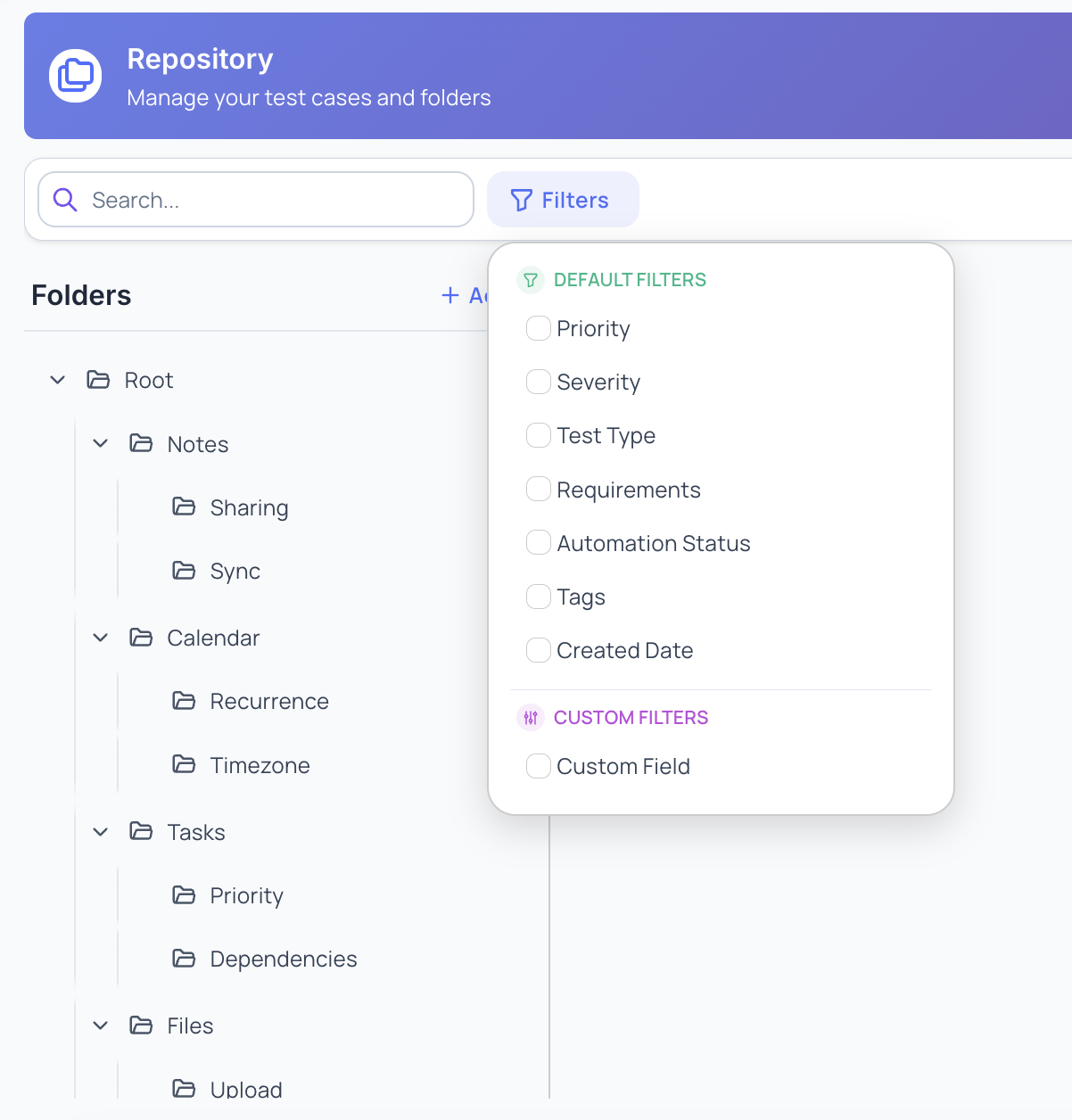
- Click the Filters button next to the search bar
- Choose one or more filters to apply
- Results update automatically as filters are selected
- Multiple filters can be applied together
Filters can be based on:
- Test case attributes (such as priority or status)
- Linked entities (like requirements)
- Tags
- Dates
- Project-specific custom fields
Filter Logic
All active filters use AND logic.
A test case must match all selected filters to appear in the results.
Clearing Filters
- Individual filters can be cleared independently
- Use Clear All to remove all applied filters at once
Combining Search and Filters
Search and filters can be used together:
- Apply filters to narrow the dataset
- Use search to find specific keywords within the filtered results
This combination is the most effective way to work with large repositories.
Best Practices
- Use search for quick keyword discovery
- Use filters for structured narrowing
- Select folders intentionally to control scope
- Clear filters when changing context
- Apply filters first, then search for precision
Permissions
Search and filtering are available to all project users.
Results always respect access permissions:
- You only see test cases you are allowed to view
- Folder access restrictions are enforced
- Custom field filters depend on project configuration
Next Steps
- Learn about Managing Folders
- Explore Creating Test Cases
- Review Bulk Operations
- Go back to the Repository Overview