Test Case Bulk Operations - Management Guide

Bulk operations allow you to perform actions on multiple test cases simultaneously, making it efficient to manage large numbers of test cases. This guide covers selecting test cases and performing bulk edit, delete, export, and test run creation.

Selecting Test Cases

Single Selection

To select a single test case:

  1. Click the checkbox next to the test case in the test case list.

  2. The test case is selected and highlighted.

  3. Click the checkbox again to deselect.

Multiple Selection

To select multiple test cases:

  1. Click checkboxes next to individual test cases.

  2. Selected test cases are highlighted.

  3. Continue selecting additional test cases.

Select All

To select all test cases in the current folder:

  1. Click the checkbox in the column header (if available).

  2. Alternatively, use the keyboard shortcut Ctrl+A (or Cmd+A on Mac).

  3. All test cases in the current folder are selected.

  4. Click again to deselect all.

Note: “Select All” only selects test cases visible in the current folder view. Filtered results are included in the selection.

Selection Indicators

When test cases are selected:

  • Selected test cases are highlighted
  • A bulk actions bar appears at the top
  • The bar shows the number of selected test cases
  • Selection persists when scrolling

Bulk Actions Bar

When test cases are selected, a bulk actions bar appears showing:

  • Selection Count: Number of selected test cases
  • Edit Icon: Bulk edit selected test cases
  • Delete Icon: Delete selected test cases
  • Export Icon: Export selected test cases
  • Create Test Run Icon: Create test run from selected test cases
  • Clear Selection Icon: Deselect all test cases

Bulk Edit

To edit multiple test cases:

  1. Select the test cases you want to edit.

  2. Click the “Edit” icon in the bulk actions bar.

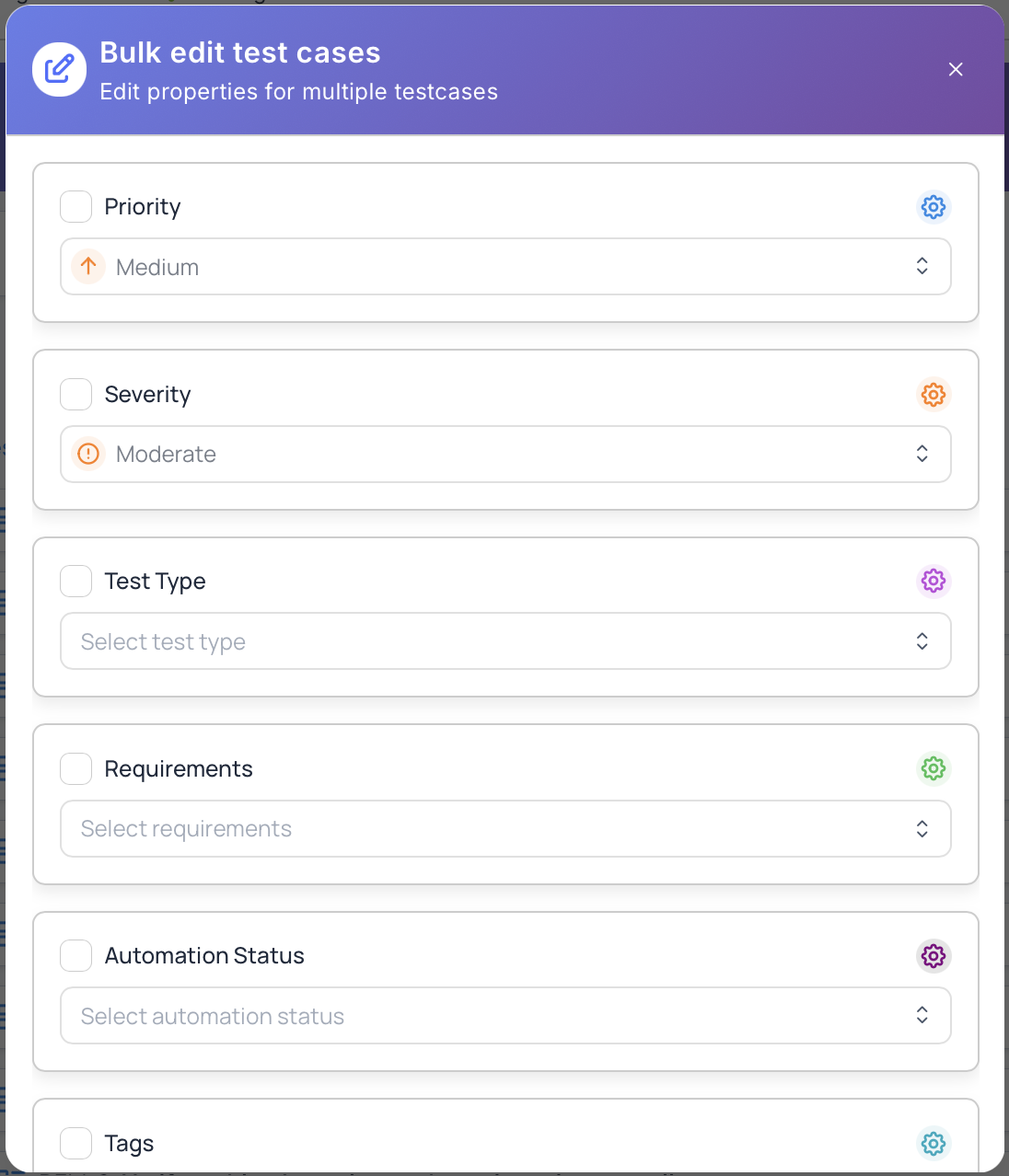
  3. A modal will appear with editable fields.

  4. Update the fields you want to change:

    Tags:

    • Add tags: Enter new tags to add to all selected test cases
    • Remove tags: Select tags to remove from all selected test cases
    • Tags are merged with existing tags (no duplicates)

    Priority:

    • Select a priority level
    • Updates priority for all selected test cases
    • Options: Critical, High, Medium, Low

    Severity:

    • Select a severity level
    • Updates severity for all selected test cases
    • Options: Critical, High, Medium, Low

    Type:

    • Select a test case type
    • Updates type for all selected test cases
    • Options: Functional, Regression, Smoke, etc.

    Automation Status:

    • Select automation status
    • Updates automation status for all selected test cases
    • Options: Manual, Automated

    Requirements:

    • Add requirements: Select requirements to link to all test cases
    • Remove requirements: Select requirements to unlink from all test cases

    Custom Fields:

    • Update project-specific custom fields
    • Fields vary based on project configuration
    • Updates apply to all selected test cases
  5. Only update fields you want to change:

    • Leave fields empty to keep existing values
    • Only updated fields are changed
  6. Click “Update Selected” to apply changes.

  7. As a result:

    • All selected test cases are updated
    • Changes are applied immediately
    • You can verify the updates in the test case list

Note: Bulk edit only updates the fields you specify. Other fields remain unchanged.

Bulk Delete

To delete multiple test cases:

  1. Select the test cases you want to delete.

  2. Click the “Delete” icon in the bulk actions bar.

  3. Alternatively, press the Delete key on your keyboard.

  4. A confirmation dialog will appear:

    • Shows the number of test cases to be deleted
    • Warns that the action cannot be undone directly
    • Notes that test cases are moved to the recycle bin
  5. Confirm the deletion by clicking “Delete”.

  6. As a result:

    • All selected test cases are deleted
    • They’re moved to the recycle bin
    • The action can be undone from the recycle bin
    • Selection is cleared

Warning: Deleted test cases are moved to the recycle bin and can be restored, but make sure you want to delete them before confirming.

Keyboard Shortcut: Press Delete key when test cases are selected to delete them.

Bulk Export

To export multiple test cases:

  1. Select the test cases you want to export.

  2. Click the “Export” icon in the bulk actions bar.

  3. A dropdown menu will appear with export format options.

  4. Choose the export format:

    Excel (.xlsx):

    • Export as Excel file
    • Includes all test case data
    • Preserves formatting
    • Suitable for editing and reporting

    JSON (.json):

    • Export as JSON file
    • Includes complete test case structure
    • Suitable for data migration
    • Machine-readable format

    CSV (.csv):

    • Export as CSV file
    • Simple text format
    • Suitable for basic data analysis
    • Compatible with spreadsheet applications
  5. Click the desired format.

  6. As a result:

    • A file is downloaded with the selected test cases
    • The file includes all test case data:
      • Basic information (title, description)
      • Properties (type, priority, severity)
      • Steps and expected results
      • Preconditions
      • Tags and requirements
      • Custom fields
    • File name includes timestamp and selection count

Note: Exported files can be used for backup, reporting, or importing into other systems.

Create Quick Test Run

To create a test run from selected test cases:

  1. Select the test cases you want to include in the test run.

  2. Click the “Create Test Run” icon in the bulk actions bar.

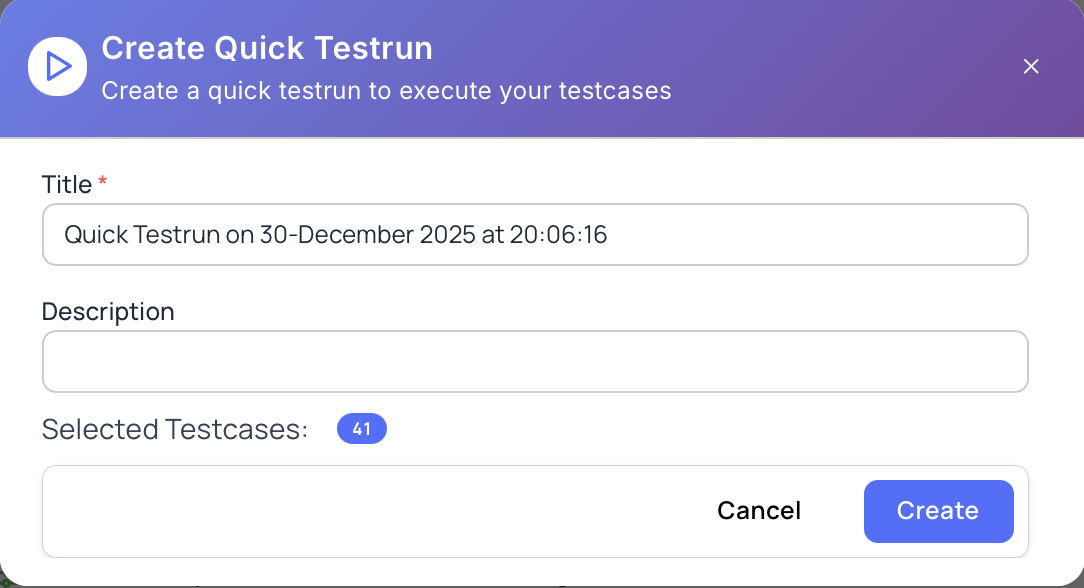
  3. A modal will appear with test run creation form.

  4. Fill in the test run details:

    Test Run Name:

    • Enter a descriptive name for the test run
    • Example: “Regression Test Run - Release 2.1”
    • Required field

    Description (Optional):

    • Add details about the test run
    • Explain the purpose or scope
    • Include any special instructions

    Release (Optional):

    • Select a release to associate with the test run
    • Links the test run to a specific release version
    • Helps track testing for releases
  5. Review the selected test cases:

    • The modal shows the number of selected test cases
    • You can verify the selection
  6. Click “Create Test Run” to create the test run.

  7. As a result:

    • A new test run is created
    • Selected test cases are added to the test run
    • You can execute the test run immediately
    • The test run appears in the Test Runs page

Note: Creating a test run from selected test cases is a quick way to prepare test execution without manually adding test cases one by one.

Clearing Selection

To clear the selection:

  1. Click the “Clear Selection” icon in the bulk actions bar.

  2. Alternatively, press Escape key.

  3. As a result:

    • All test cases are deselected
    • The bulk actions bar disappears
    • Selection highlights are removed

Keyboard Shortcut: Press Escape key to clear selection.

Bulk Operations Best Practices

  1. Verify Selection: Double-check selected test cases before performing bulk operations
  2. Use Filters: Apply filters first to narrow down test cases, then select all
  3. Bulk Edit Efficiently: Update common properties across multiple test cases
  4. Export Regularly: Export test cases for backup before bulk deletions
  5. Test Run Creation: Use bulk selection to quickly create test runs
  6. Review Changes: Verify bulk edit changes after applying them
  7. Backup Important Data: Export important test cases before bulk operations
  8. Use Select All Carefully: Be cautious when using “Select All” in large folders

Permissions

Access to bulk operations depends on your role:

  • Project Owner: Full access to all bulk operations
  • Project Administrator: Can perform all bulk operations
  • Project Manager: Can bulk edit and create test runs
  • Tester: Can create test runs from selected test cases
  • Viewer: Read-only access (cannot perform bulk operations)

Note: Bulk operations respect individual test case permissions. You can only perform operations on test cases you have permission to modify.

Keyboard Shortcuts

  • Ctrl+A (or Cmd+A): Select all test cases in current folder
  • Delete: Delete selected test cases
  • Escape: Clear selection

Next Steps

Was this page helpful?