Creating Custom Fields
Custom Fields allow teams to capture additional, structured information across test cases, executions, defects, requirements, and releases — without hardcoding process assumptions into the system.
Hawzu uses a two-level model for custom fields:
- Workspace Custom Fields → Define what data exists
- Project Configuration → Decide how that data is used and enforced
This separation keeps governance centralized while allowing project-level flexibility.
Custom Fields Model in Hawzu
Workspace Fields (Governing, Not Enforcing)
Workspace custom fields act as a shared catalog of fields available across the workspace.
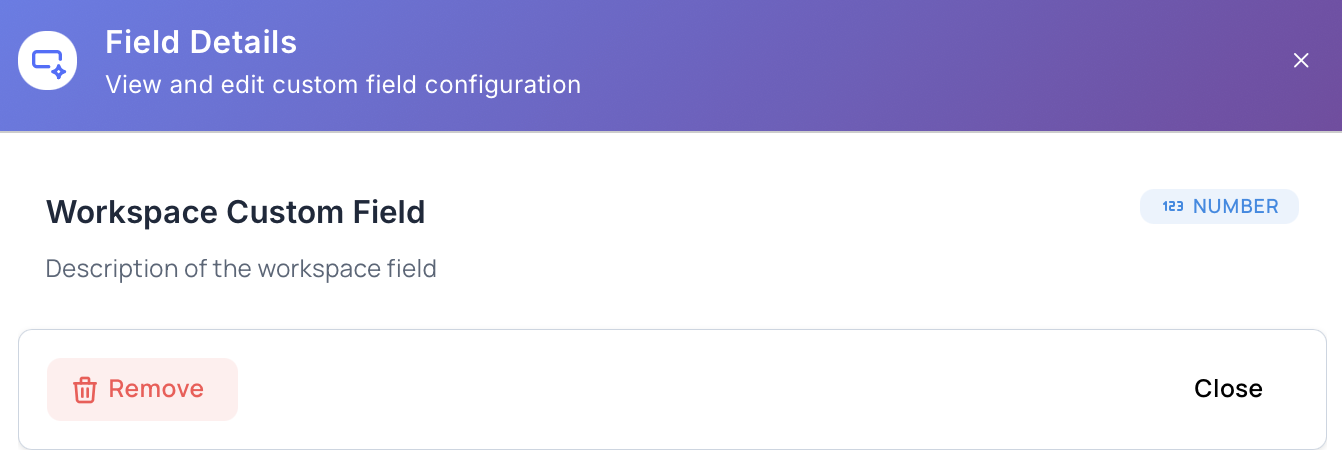
At the workspace level:
- Fields define structure and type
- Fields do not enforce rules
- Fields are not mandatory by default
- Fields can be reused across multiple projects
Think of workspace fields as capabilities, not rules.
Project-Level Usage (Enabling & Enforcement)
Projects decide how workspace fields behave locally.
At the project level, teams can:
- Enable or disable workspace fields
- Mark fields as required or optional
- Control where fields apply (test cases, executions, defects, requirements, releases)
- Apply validation rules locally
- Set default values
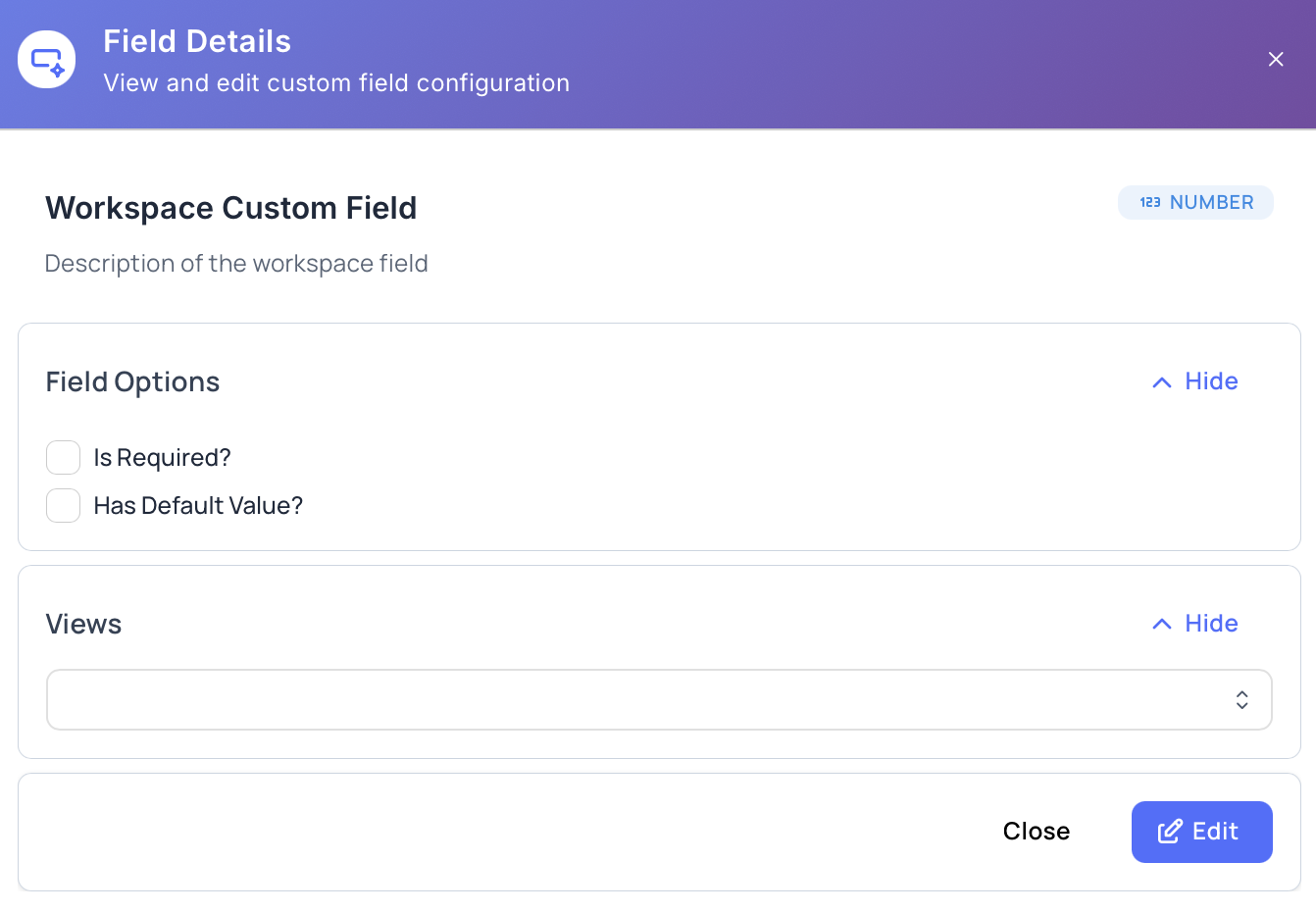
This ensures:
- Consistency across projects
- Zero unnecessary friction for teams that don’t need a field
- Strong enforcement only where it matters
Creating a Workspace Custom Field
Workspace custom fields define the shape of data available to all projects.
- Navigate to Configuration → Custom Fields
- Click Create Custom Field
- Fill in the field details
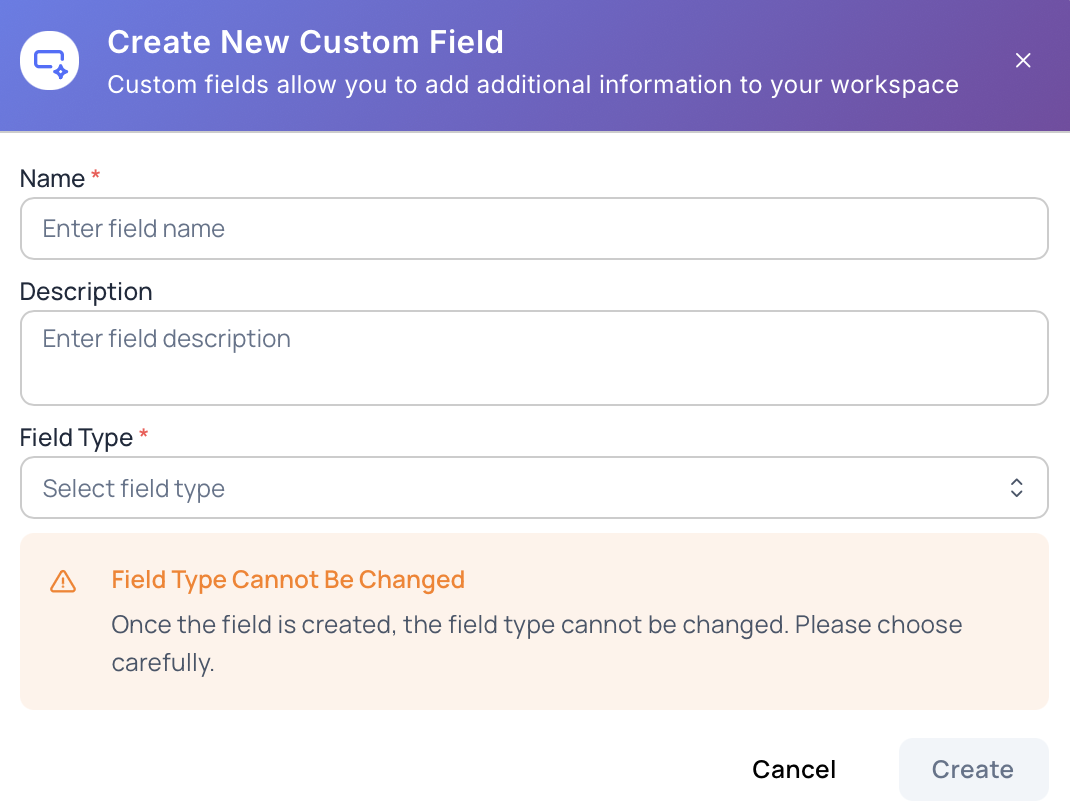
Name (required)
Human-readable field name.
Example: Browser, Build Number, Customer Tier
Description (optional)
Explains the purpose of the field and helps teams understand when to use it.
Field Type (required)
Choose the data type carefully — field type cannot be changed later.
Supported field types:
- Number
- Text Box
- Text Area
- Checkbox
- Dropdown
- Date Picker
- Link
⚠️ Field Type Cannot Be Changed
Once the field is created, the field type is locked to preserve data integrity across projects.
Create the Field
Click Create. The field is now available for projects to enable and configure.
Creating a Project Custom Field
Project custom fields are created in the same way as workspace custom fields, but are scoped to a specific project.
- Navigate to Project Settings → Custom Fields
- Click Create Custom Field
- Fill in the field details
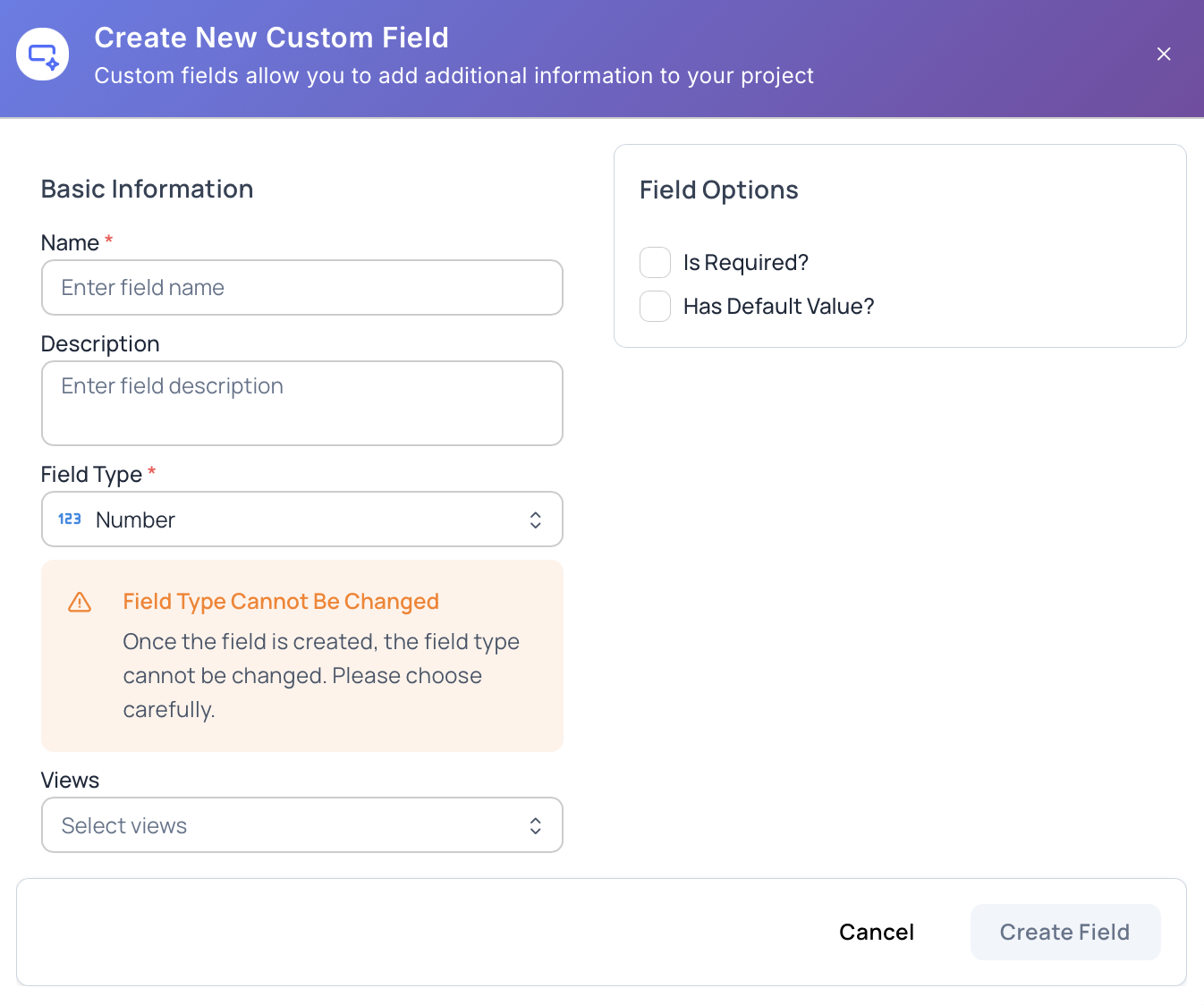
Name (required)
Human-readable field name.
Example: Browser, Build Number, Customer Tier
Description (optional)
Explains the purpose of the field and helps teams understand when to use it.
Applicable Views
Control where the field appears:
- Test cases
- Defects
- Requirements
- Releases
Each project can enable the same field in different places.
Field Type (required)
Choose the data type carefully — field type cannot be changed later.
Supported field types:
- Number
- Text Box
- Text Area
- Checkbox
- Dropdown
- Date Picker
- Link
⚠️ Field Type Cannot Be Changed
Once the field is created, the field type is locked to preserve data integrity across projects.
Required vs Optional
- Mark the field as required for specific entities
- Leave it optional if informational
Default Value
- Automatically populate the field when creating entities
- Useful for dropdowns, booleans, or common defaults
Dropdown Fields
Dropdown fields allow users to select a value from a predefined list.
For Dropdown type fields:
- Add multiple selectable values
- Reorder options via drag-and-drop
- Set a default option
- Remove unused options
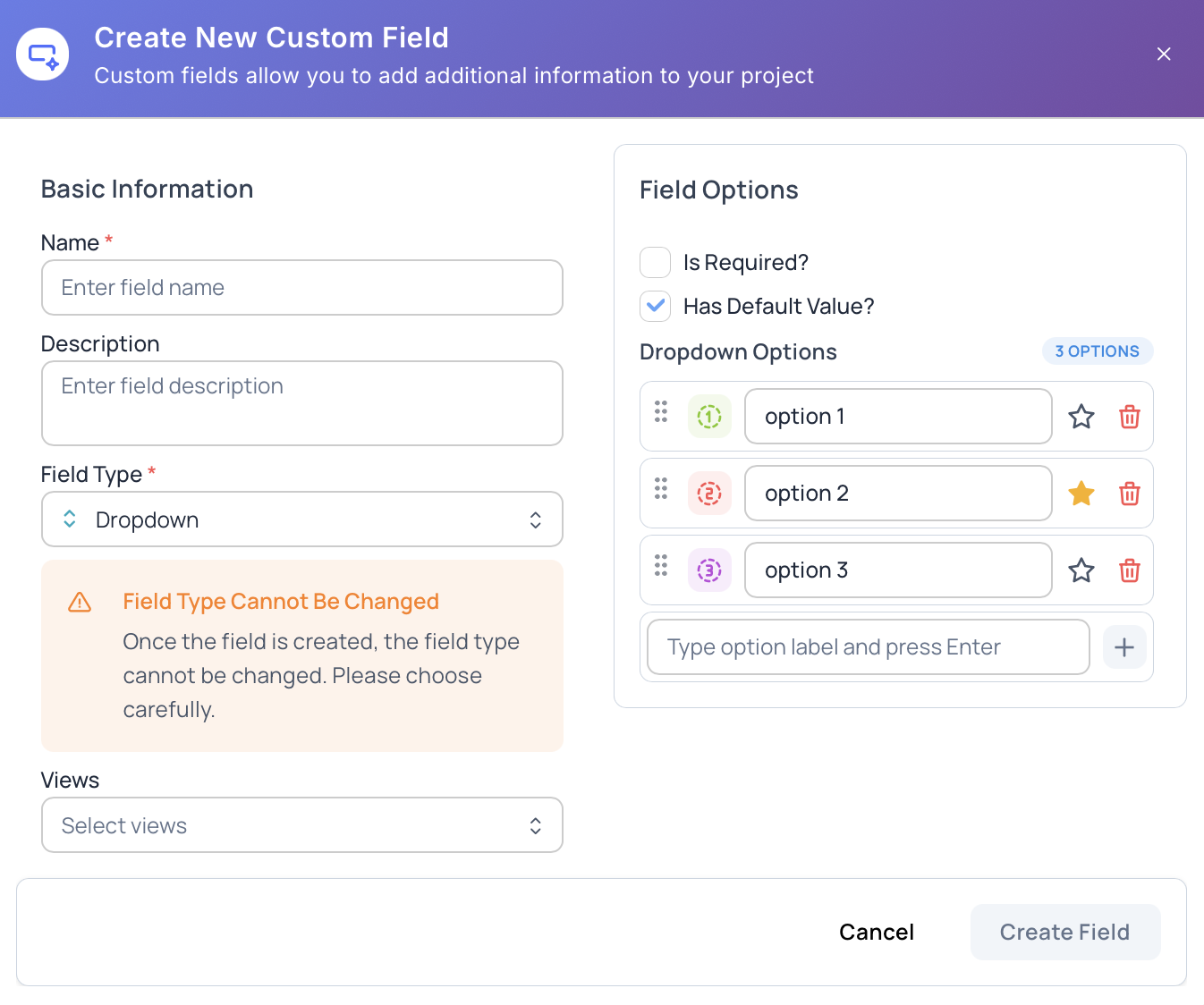
In Hawzu, dropdown fields support visual customization, making them easier to scan, filter, and understand.
Editing Custom Fields
Workspace Fields
- Name and description can be updated
- Field type cannot be changed
- Removing a field affects all projects using it
Project Configuration
- Enforcement rules can be changed anytime
- Enabling or disabling does not delete existing data
- Required rules apply immediately
Best Practices
- Create fewer, reusable workspace fields
- Enforce rules only at the project level
- Use dropdowns for reporting and analytics
- Document field purpose using descriptions
- Audit unused fields periodically
Key Takeaway
Workspace fields define what is possible.
Projects decide what is mandatory.
This design keeps Hawzu flexible for teams while maintaining structure at scale.
Next Steps
- Learn how to Manage Custom Fields
- Explore Best Practices for custom fields
- Read Custom Fields Overview